
As of 1 January 2025, a new procedure for using the IMAP interface to retrieve emails has been introduced to enhance security and minimize risks associated with weak or compromised passwords.
Why This Change?
- Past Security Issues: Repeated incidents of compromised user passwords, often due to weak or publicly known credentials.
- No Two-Factor Authentication (2FA) for IMAP: IMAP technically does not support two-factor authentication. Therefore, with this change, the email password is now separated from the user password. This reduces the risk of an attack on other university-wide services.
What is the Device Password?
- An automatically generated password.
- Fixed and unchangeable: The device password cannot be manually modified.
- Usage: Required for retrieving emails via the IMAP interface (e.g., in email programs like Thunderbird, Outlook, or mobile apps).
- You only need to set up a device password for your personal account.
- Functional email addresses remain unaffected.
What about the User Password?
- The user password remains unchanged and is still required for all other services.
Enabling the Device Password
- Start VPN Connection
- Open the website: https://idm.th-deg.de
- Click on your username → Open Settings → Uncheck the checkbox (remove the checkmark) → Save changes.
- If the setting is already disabled, you can skip this step.
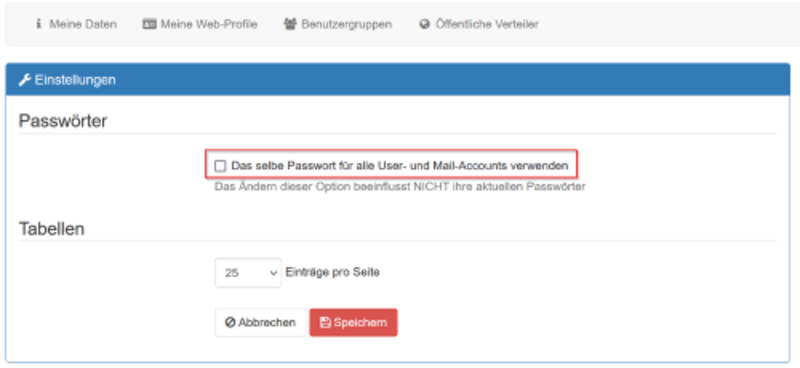
Setting the Device Password:
You can set the device password in the IDM (Identity Management) system of Deggendorf Institute of Technology.
Scroll down to the section for your user account.
Navigate to the "Mail Accounts" section (on the right).
Click on "Change Device Password".
Click on "Generate New Device Password".
The device password will be displayed in the next step. You can copy it using the copy icon.



Important: The device password is displayed only once!
Make sure to save it in a password manager, such as Vaultwarden.