
To connect to a network, you need to be on campus and connected to the internal network (e.g. Eduroam) or connected via VPN.
When you log in to a computer in a PC lab, you're already connected to the S drive (all faculties) or R drive (ECRI).
1. Open Windows Explorer via the folder icon OR press the Windows logo key + E
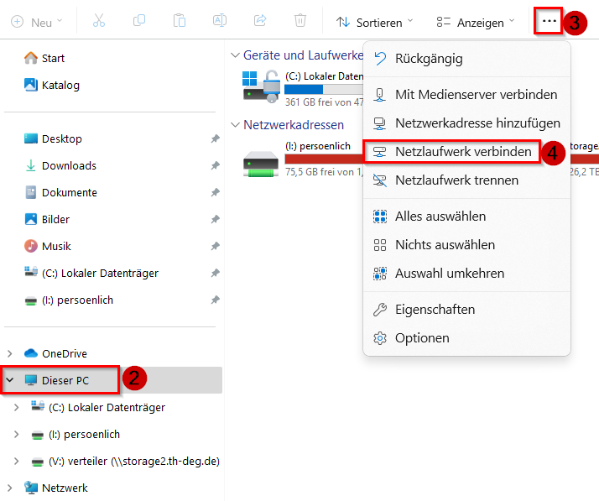
2. Select "This PC"
3. Select "Map network drive": Click on the three dots at the top (more options)
4. Select "Map network drive"
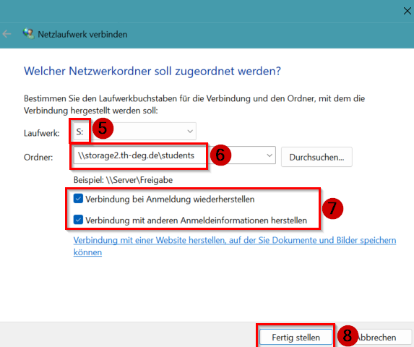
5. Select drive letter:
- R: ECRI
- S: all other faculties
6. Enter network path
- ECRI: \\ec-storage.th-deg.de\students
- all other faculties: \\storage2.th-deg.de\students
7. Check the box "Restore connection on logon"
8. Click on "Finish"
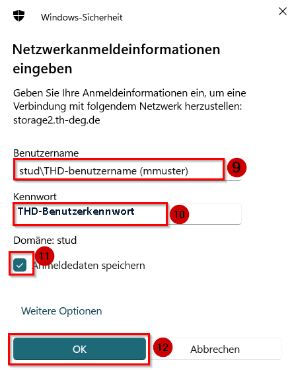
9. Enter your username
10. Enter your DIT user password
11. Check the box to save your login details
12. Klick OK
Once the connection has been successfully established, the network drive will be displayed in File Explorer under "This PC".