The printing system of the Deggendorf Institute of Technology is operated by the LIEBL SYSTEMS GmbH. If the machine malfunctions or the toner or paper runs out, contact the support.
At the European Campus please contact Ilona Seifert in room 2.16 for technical problems.
Registering your student or staff id card
In order to be able to use the Follow-Me print service or to be able to authenticate to card reader-equipped devices or to deposit credit at the recharging terminal (students only), register your student / employee id card (or even better the blue chip card, if available) at a device with a card reader.
The following steps are necessary for this:
- 1.Keep the student / employee id / chip card briefly on the reader. The system then reports that the id card is not yet stored in the system and asks you to log in.
- 2. Log on with user name (e.g. stud\ab12345 or mmustermann) and password just as you do when logging into Windows. Students should note that the domain must be prefixed with “stud\” in front of the user name.
- 3. Your student / employee id / chip card is now assigned to your print account. Now you can log on to any device with a card reader by briefly placing the id / chip card on it.
- 4. !!!ATTENTION!!! Do not forget to log out! An automatic logout takes place only after 90 seconds.
Print credits
Students must recharge their credit at the terminal across from the Copyshop (C 012). Employees have unrestricted credit even if 0.00 € is displayed on the device.
Students of the European Campus will find the recharging terminal in the EC 0.17 area. Charging is only possible with bank notes.
Printer setup
- Instructions for setting up printers - Windows
- Instructions for setting up printers - macOS
- Instructions for setting up printers - Linux (Ubuntu)
Printing via Webprint
You can also start a print job in PDF format via Webprint. Please log in with your university user account (Students should note that the domain must be prefixed with “stud\” in front of the user name) at https://druck.th-deg.de:9192 (only accessible on campus or via VPN). Click on Online Printing, then Send Print Job and follow the instructions. Uploaded print jobs can be released at any copier with a card reader. Only B/W printing is possible via Webprint.
Printing via e-mail
You can also send a print job in PDF format via e-mail. Please send an e-mail with a PDF attachment (also several PDF attachments are possible) from your university e-mail account to print@th-deg.de. The print job can then be released at copiers with card readers. The system automatically detects whether it is B/W or color pages.
Please note that you MUST NOT digitally sign the e-mail (keyword S/MIME), otherwise the PDF attachments will not be recognized correctly.
Scanning
You have the possibility to scan pages and have them sent to your own e-mail address as PDF files. Please note that these scans must not be larger than 20 MB. For technical reasons, you will only be notified during the sending process if the scan job is too large. This can be remedied by splitting your scans or scanning them to a USB stick using the copier's device functions. This should be formatted with FAT32. If it is not, the copier will do this for you after confirmation.
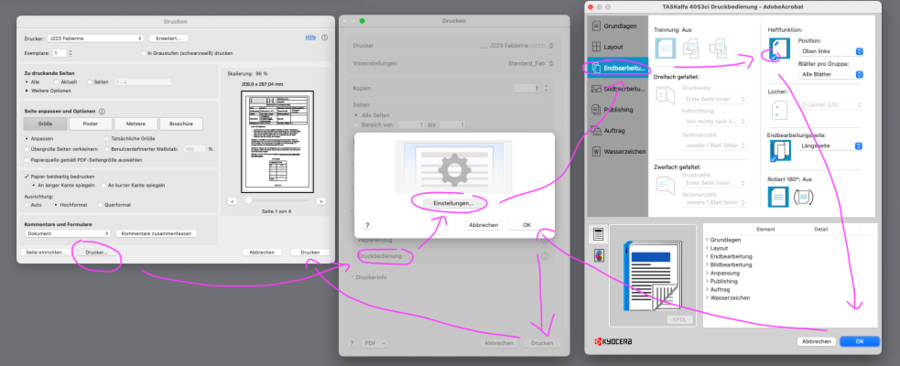
Option for stapling not available under macOS
If the stapling option is not available or grayed out under macOS, you must first activate this option in the printer settings. The option should then be available in the print dialog of e.g. Word or Acrobat:
Support phone numbers and email addresses
Please contact the laboratory engineer of your respective faculty first in the case of all equipment malfunctions or in the case of Administration to the print-support@th-deg.de.
| Problem | Phone Number | |
| Device failure | 123 | print-support@th-deg.de |
| Toner / Paper | 362 | copyshop@liebl-systems.de |
| Printer orders | print-support@th-deg.de |
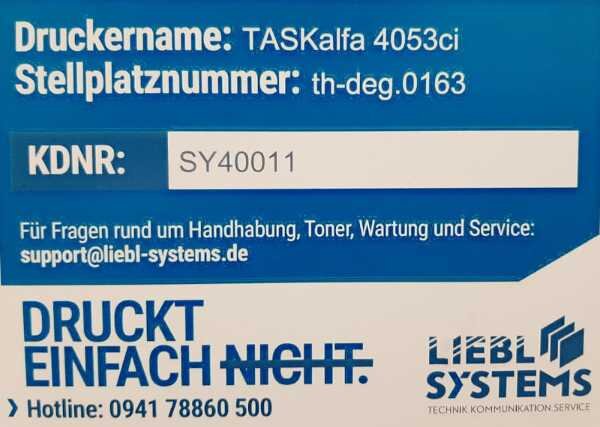
In the event of a device failure the pitch number (Stellplatznummer) of the device must be specified. You can find this on the respective service sticker of the machine: