Zotero is a reference management tool for collecting, organising and citing sources for academic work. It enables the automatic collection of source information from databases, catalogues and the web, the insertion of citations into texts, and the creation of reference lists in various programmes such as Word and LaTeX.
Main Features
- Automatic collection of bibliographic data from academic articles, books, websites and other sources.
- Structured organisation of sources in libraries and collections, as well as the addition of notes and tags for categorisation and labelling.
- Integrated functions for highlighting text in PDFs and adding annotations and notes that are directly linked to the relevant entry.
- Automatic insertion of citations and reference lists into text documents, supporting thousands of different citation styles (e.g. APA, MLA).
- Collaboration in working groups and free storage space for the synchronised exchange of data.
Zotero allows you to synchronise data and associated files (e.g. PDFs) across multiple computers. The data is always synchronised via the Zotero library, either via the Zotero server or via WebDAV. The Zotero server is the simplest solution, but the free storage is limited to 300 MB. Alternative: THD’s Nextcloud (via WebDAV)
Instructions for using Zotero file synchronisation via Nextcloud (via WebDAV)
Requirements for the synchronisation feature:
- Zotero account: https://www.zotero.org/user/register
- Log in to THD-Nextcloud first, if you haven’t used it before: https://nextcloud.th-deg.de
Setup
Log in to Nextcloud and create an app password:
Profile (profile picture) → Settings → Security → Devices & Sessions (scroll right to the bottom) → Enter app name (any name) → Click on ‘Create new password’
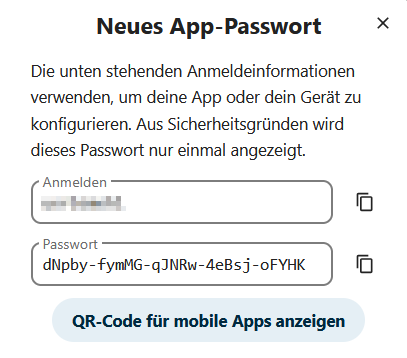
You MUST save or make a note of your username and password!!!
The password cannot be displayed again.
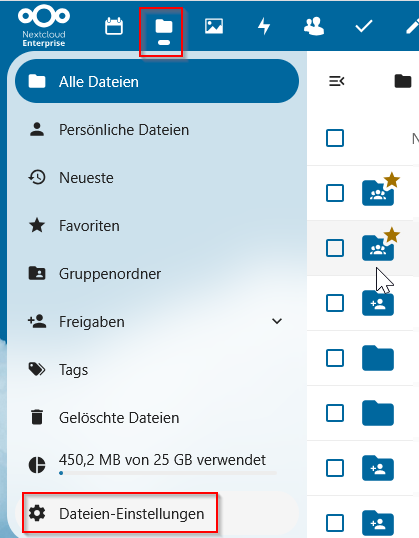
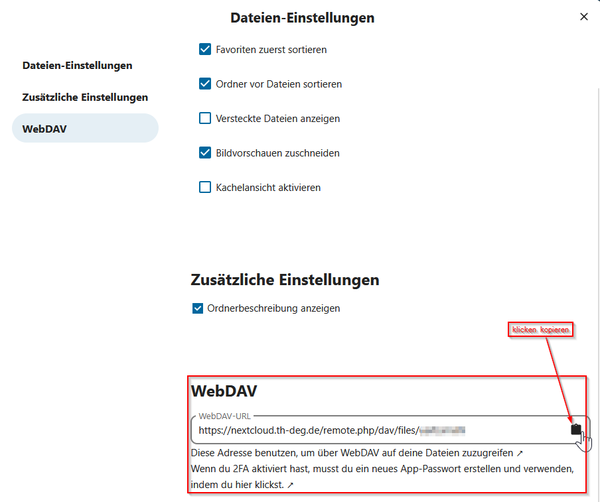
Find and copy the WebDAV URL:
Files → File settings → WebDAV → Click the icon next to the URL (the WebDAV URL is copied to the clipboard) → Save it somewhere, otherwise you’ll have to hunt it down again later via Nextcloud
Zotero synchronisation:
Open Zotero → Edit → Preferences → Sync → Enter your Zotero account details → Configure synchronisation
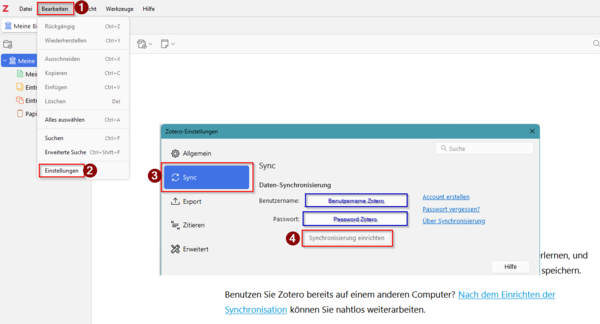
Data synchronisation:
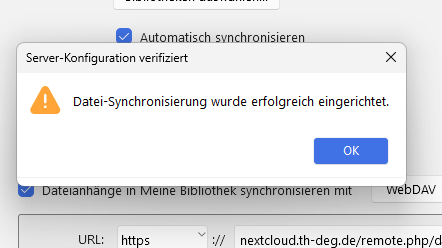
Synchronise attached files in My Library with: → Change from Zotero to WebDAV → OK
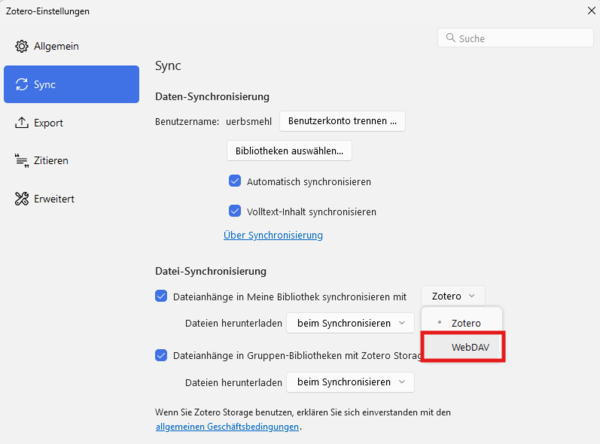
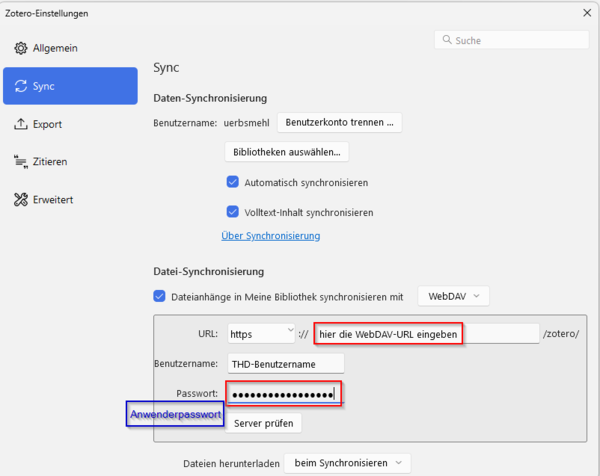
Further settings:
Required: WebDAV URL and user password
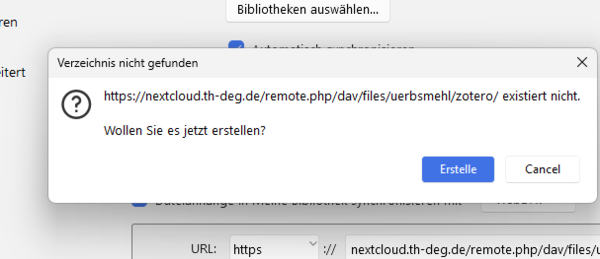
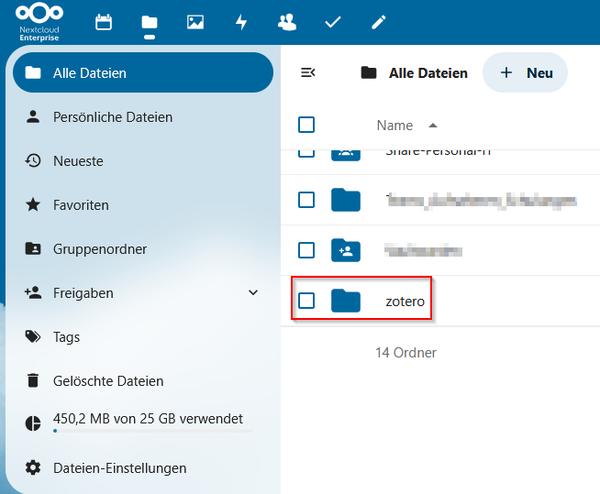
Nextcloud automatically creates a subfolder called ‘Zotero’, where the synchronised files are stored.