### If your timetable isn't available yet, it has not been published by your faculty yet. When in doubt, please ask your study course assistant. ###
For each program, the timetables are available both as a dynamic PDF file and as a calendar subscription. You can find the respective links in the overview below. Please make sure to note the following important information:
- Timetables may change at any time; they are only binding from the beginning of the semester at the earliest. Therefore, please check the schedule regularly during the semester for possible updates.
- The linked PDF file is updated automatically whenever changes are made to the timetable. We therefore recommend saving the link as a bookmark in your web browser.
- Important: If you download the PDF, you will receive a static file that will no longer update automatically.
- To set up a calendar subscription, simply copy the subscription URL for your cohort from the list (“ICAL”).
- Use the instructions below to integrate the copied URL into your preferred calendar application. Once set up, the subscription will be created and will automatically synchronize with thabella.
- After setting up the calendar subscription, please also pay attention to any footnotes for individual events in the calendar, as these may contain important information about the respective lecture.
If you have any technical questions regarding the timetables/subscriptions, do not hesitate to contact us: thabella-support@th-deg.de
summer semester 2026
Business Administration & Management
Business Management
Cyber Security
Digital Business Engineering
Industrial Engineering – Mechatronic Systems
MBA General Management
Public Management
Security Management
Technology Management
Vocational education
Applied Economics
Business Administration
- BWL-2 (PDF ) (ICAL )
- BWL-4 (PDF ) (ICAL )
- BWL-EXPW6 (PDF ) (ICAL )
- BWL-FMFI6 (PDF ) (ICAL )
- BWL-MARKO6 (PDF ) (ICAL )
- BWL-PBM6 (PDF ) (ICAL )
- BWL-RLBA6 (PDF ) (ICAL )
Cosmetic Science and -management
Digital Business
Digital Business Psychology
Economic Psychology
General Business
General Engineering
International Management
Master of Business Administration
Organisational and Economic Psychology
Risk and Compliance Management
Strategic and International Management
Tourism Management
Bachelor Occupational therapy dual
Emergency Paramedic
Management in Health, Social and Rescue Services
Management in Rescue Services
Management von Inklusion und Teilhabe
Mental Health
Nursing
Nursing (German taught)
Nursing Education
- PFP-5 (PDF ) (ICAL )
- PFP-7 (PDF ) (ICAL )
- PFP-8 (PDF ) (ICAL )
- PFP-9 (PDF ) (ICAL )
- PFP-10 (PDF ) (ICAL )
Nursing International
Physican Assistant / Medical Care
- PHA-2A (PDF ) (ICAL )
- PHA-2B (PDF ) (ICAL )
- PHA-2C (PDF ) (ICAL )
- PHA-2D (PDF ) (ICAL )
- PHA-4A (PDF ) (ICAL )
- PHA-4B (PDF ) (ICAL )
- PHA-4C (PDF ) (ICAL )
- PHA-4D (PDF ) (ICAL )
- PHA-6 (PDF ) (ICAL )
- PHA-8 (PDF ) (ICAL )
Physiotherapy dual majoring Movement Science
Social Work
Applied AI for Digital Production Management
Applied Sports Sciences
Applied sport science Focus on interprofessional support in sport
Artificial Intelligence for Smart Sensors and Actuators
Engineering of Sustainable Systems
Industrial Engineering
- WIW-2A (PDF ) (ICAL )
- WIW-2B (PDF ) (ICAL )
- WIW-4A (PDF ) (ICAL )
- WIW-4B (PDF ) (ICAL )
- WIW-6 (PDF ) (ICAL )
Interdisciplinary Engineering Sciences
Master Robotics
Mechatronic and Cyber-Physical Systems
Mechatronics and Project Management for Digital Production
Technology Management
Civil and Construction Engineering
Civil and Environmental Engineering
Construction Management
Environmental Engineering
Project Management in Civil Engineering
Applied Computer Sciences
- AI-2 (PDF ) (ICAL )
- AI-ES4 (PDF ) (ICAL )
- AI-IOT4 (PDF ) (ICAL )
- AI-MRS4 (PDF ) (ICAL )
- AI-ES6 (PDF ) (ICAL )
- AI-IOT6 (PDF ) (ICAL )
- AI-MRS6 (PDF ) (ICAL )
Applied Computer Sciences
Artificial Intelligence
Artificial Intelligence
Artificial Intelligence and Data Science
Automotive Software Engineering
Bachelor Software-Design
Bioinformatics
Business Informatics
Business Informatics majoring Data Science
Business Informatics, M.Sc.
Cyber Security
Entrepreneurial Game Development
High Performance Computing / Quantum Computing
Key Competencies Faculty CS
Life Science Informatics
Electrical Engineering and Information Technology
- ET-2 (PDF ) (ICAL )
- ET-4 (PDF ) (ICAL )
- ET-AET6 (PDF ) (ICAL )
- ET-AUT6 (PDF ) (ICAL )
- ET-NTE6 (PDF ) (ICAL )
Electrical Engineering and Information Technology
Electrical Engineering and Information Technology International
Electromobility
Electromobility international
Electromobility, Autonomous Driving and Mobile Robotics
Electronics Engineering for Artificial Intelligence - International
Media Technology
Media Technology
Building Products and Processes
Business Administration and Service Management
Energy Systems Engineering
Global Public Health
Health Informatics
Industrial Engineering
International Tourism Development
International Tourism Management / Health and Medical Tourism
Master of Digital Health
Master of Healthy and Sustainable Buildings
Mechanical Engineering
Mechanical Engineering
Mechatronic and Cyber-Physical Systems
Mechatronics
Sustainability in Polymer Technology
Technical Design
Instructions for setting up the calendar subscription with your preferred calendar app
After copying the URL for your program from the list above, please continue with the instructions below:
- 1. On your mac, choose the option “file” under “calendars” and choose “new calendar subscription”
- 2. In the following field, enter your previously copied subscription-URL and click on “subscribe”
- 3. Choose a name and color for your calendar
- 4. In the location-menu, choose „iCloud“. Select a preferred update-interval. If you only see the options “nextcloud” and “local”, please choose “nextcloud”
- 5. Submit with “OK”:
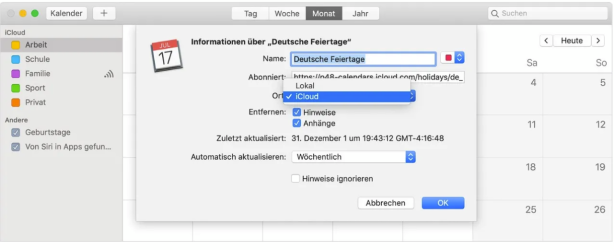
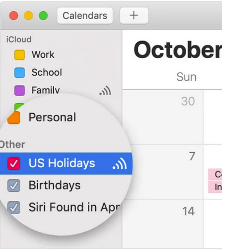
- 6. To make sure the events of your schedule are displayed on your iPhone/iPad, check if the calendar is selected in the list of your calendars (=the checkbox next to it is checked):
Please note: Google takes up to 12 hours to sync new, modified or deleted events - this is unfortunately beyond our control. See also https://support.google.com/calendar/answer/37100?hl=en&ref_topic=1672445#zippy=%2Cadd-using-a-link.
- 1. Open https://calendar.google.com
- 2. Click the "plus"-sign in the left column next to "other calendars":
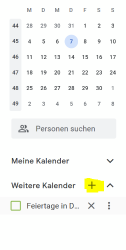
- 3. Select "from URL":
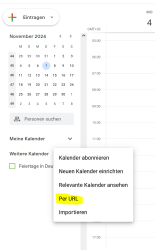
- 4. In the field „URL of calendar“ enter your previously copied subscription URL
- 5. Click on the button “Add calendar”
- 6. Now your events are being synchronised. To make sure they are really displayed in your calendar, make sure the checkbox next to the calendar in your list is selected (also on your smartphone app):
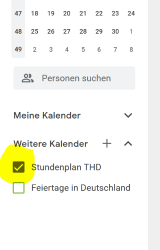
- 7. If you want to see the calendar on your phone, you also need to make sure to activate the “synchronise” option in the calendar’s settings in the google calendar app.
- This manual refers to the latest version of Mozilla Thunderbird (102.12.0 and newer). If you have an older version, please perform an update first.
- 1. Open the calendar tab (usually on the top left):
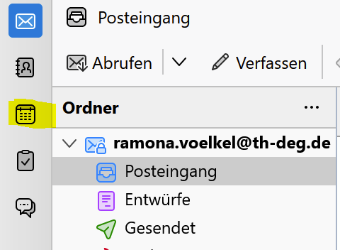
- 2. Click on the “+”-Sign next to “Calendar”:
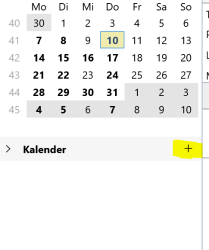
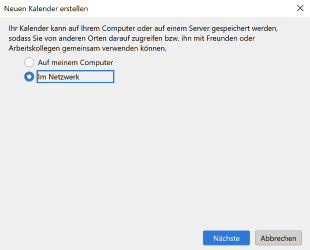
- 3. A new window opens - choose “On the network” and continue with “Next”:
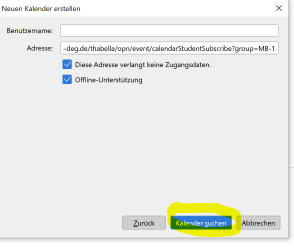
- 4. Enter your previously copied subscription URL into the field “location”. The field “username” remains empty.
- 5. Check both checkboxes (”…doesn’t require credentials” and “Offline Support”) Continue with “Find calendars”:
- 6. You can either immediately choose “Subscribe” in the next window or change the properties (e.g. name and color) first. The calendar is named “calendarStudentSubscribe” per default:
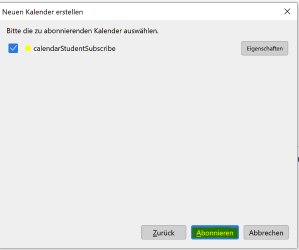
- 7. After subscribing the calendar should be displayed in th list of all your calendars in thunderbird.
- 1. Open the calendar tab in outlook (upper left corner)

- 2. Right-click on “other calendars”:
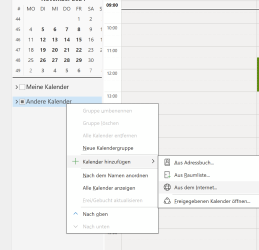
- 3. „Select „Add Calendar“ —> „From Internet“:
- 4. Enter your subscription URL that you previously copied in the following field and confirm with “OK”:
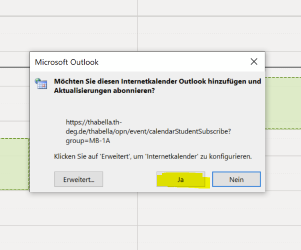
- 5. Confirm the subscription again with “Yes”:
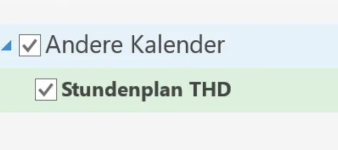
- 6. A new calendar will be displayed in the list of your calendars on the left. To make sure the events are visible, check if the checkbox next to the calendar is checked:
- 1. Go to https://nextcloud.th-deg.de/apps/calendar
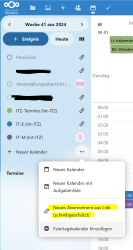
- 2. In the list of your calendars (on the left) click on the “+” next to „Neuer Kalender“. Choose „Neues Abonnement aus Link (schreibgeschützt)“:
- 3. In the following field enter your previously copied URL and submit with the arrow-sign:
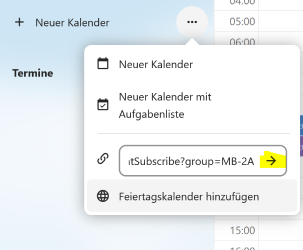
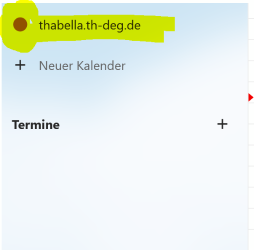
- 4. Your schedule will now be synchronised. To make sure the events are displayed in the calendar, check if the circle next to the calendar name on the left is filled (= the calendar is selected):
winter semester 26/27
Business Administration & Management
Business Management
Cyber Security
Digital Business Engineering
Industrial Engineering – Mechatronic Systems
MBA General Management
Public Management
Technology Management